
Keyboard Navigation Testing Without Assistive Tools: A Step-by-Step Guide
June 26, 2026
By Shubham Kalra
When testing web accessibility, many people immediately think of assistive technologies such as NVDA, JAWS, or VoiceOver. While testing with screen readers is important, there is another accessibility check that every tester can perform without any special tools: keyboard navigation testing.
Keyboard navigation testing focuses on whether users can access and operate a website using only a keyboard, without relying on a mouse or assistive technology. This type of testing helps identify barriers that can affect people with motor disabilities, temporary injuries, power users who prefer keyboard shortcuts, and many others.
The best part is that it requires no additional software. By simply putting your mouse aside and navigating with your keyboard, you can uncover many accessibility issues that might otherwise go unnoticed.
In this guide, we’ll walk through a simple step-by-step process for testing keyboard accessibility without using assistive tools such as NVDA, JAWS, or VoiceOver.
What Is Keyboard Navigation?
Keyboard navigation means being able to use a website without a mouse. Users should be able to move through interactive elements such as links, buttons, form fields, menus, and dialogs using only the keyboard.
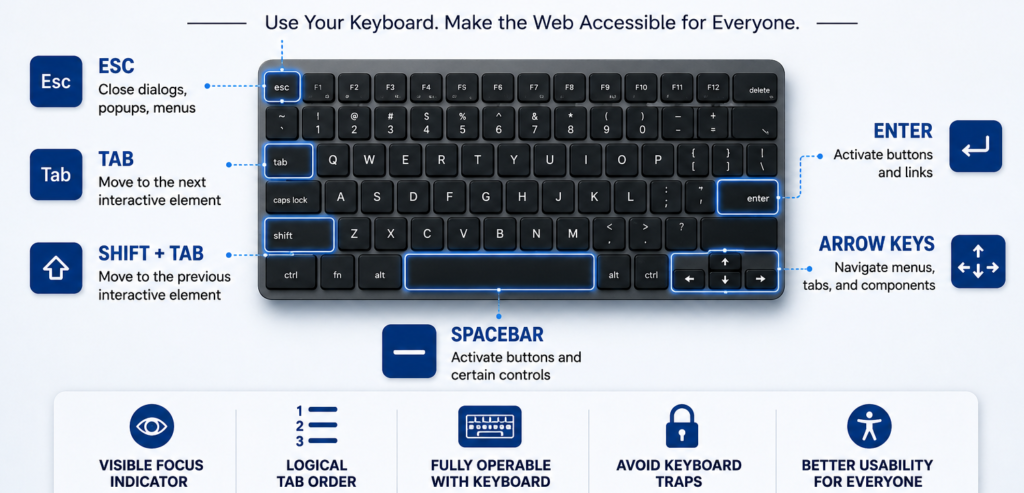
The most commonly used keys are:
- Tab – Move to the next interactive element
- Shift + Tab – Move to the previous interactive element
- Enter – Activate buttons and links
- Spacebar – Activate certain controls such as checkboxes and buttons
- Arrow Keys – Navigate some menus, tabs, dropdowns, and other custom components
- Esc – Close dialogs, popups, and menus
Why Is Keyboard Navigation Important?
Many users rely on a keyboard to browse the web. Some cannot use a mouse because of physical disabilities, while others simply find keyboard navigation faster and more efficient.
If a website cannot be used with a keyboard alone, users may struggle to access content, complete forms, navigate menus, or perform important tasks.
Keyboard accessibility is also an important requirement of accessibility standards such as WCAG.
Step 1: Put Your Mouse Aside
The simplest way to start keyboard testing is to stop using your mouse completely.
Try navigating the website using only your keyboard.
Ask yourself:
- Can I reach all important content?
- Can I access all menus and controls?
- Can I complete key user tasks?
If not, there may be keyboard accessibility issues that need attention.
Step 2: Press Tab and Follow the Focus
Start at the top of the page and repeatedly press the Tab key.
Each press should move focus to the next interactive element.
Look for:
- Links
- Buttons
- Form fields
- Dropdown menus
- Search boxes
- Navigation items
You should always know where keyboard focus is located.
Step 3: Check the Focus Indicator
When an element receives keyboard focus, it should have a visible outline or highlight.
This is known as the focus indicator.
A good focus indicator should:
- Be clearly visible
- Stand out from the background
- Remain visible across the entire website
Common issues include:
- No visible focus indicator
- Very faint focus styling
- Focus outlines removed through CSS
If users cannot see where focus is, navigation becomes difficult.
Step 4: Verify the Tab Order
The order of focus should follow the visual and logical structure of the page.
For example:
- Header navigation
- Search field
- Main content
- Sidebar content
- Footer links
Watch for:
- Focus jumping around unexpectedly
- Important controls being skipped
- Focus landing on hidden elements
A predictable tab order helps users navigate efficiently.
Step 5: Test Menus and Navigation
Use only the keyboard to navigate menus and navigation components.
Verify that:
- Menu items receive focus
- Submenus can be opened
- All menu options are reachable
- Focus remains visible throughout navigation
Users should never need a mouse to access navigation options.
Step 6: Test Forms
Forms are often one of the most important parts of a website.
Using only the keyboard, try to:
- Move between fields
- Select checkboxes
- Choose radio buttons
- Open dropdowns
- Submit the form
Make sure:
- Form fields have clear labels
- Error messages appear when needed
- Users can navigate to and understand errors
The entire form should be usable without a mouse.
Step 7: Test Dialogs and Popups
Open any modal dialog, popup, or overlay.
Check that:
- Focus moves into the dialog when it opens
- Users can navigate through all controls
- Focus does not move behind the dialog
- The Esc key closes the dialog when appropriate
After closing the dialog, focus should return to the element that opened it.
Step 8: Look for Keyboard Traps
A keyboard trap occurs when users can move into a component but cannot move back out.
Examples include:
- Getting stuck inside a popup
- Losing the ability to tab forward or backward
- Being unable to leave a custom widget
Users should always be able to move freely through the interface.
Step 9: Test Custom Components
Modern websites often contain custom-built components such as:
- Tabs
- Accordions
- Dropdown menus
- Date pickers
- Carousels
These components should:
- Receive keyboard focus
- Support expected keyboard controls
- Provide visible focus indicators
- Remain fully operable without a mouse
Custom components are one of the most common sources of accessibility issues.
Step 10: Complete a Real User Journey
Finally, test an entire task from beginning to end using only the keyboard.
Examples include:
- Creating an account
- Logging in
- Searching for information
- Completing a purchase
- Submitting a contact form
Real-world testing often reveals issues that are missed during page-by-page reviews.
Common Keyboard Accessibility Issues
During testing, you may discover:
- Missing focus indicators
- Incorrect tab order
- Inaccessible menus
- Keyboard traps
- Unreachable buttons or links
- Custom controls that do not support keyboard interaction
- Hidden elements receiving focus
Document these findings and work with developers to resolve them.
Final Thoughts
Keyboard navigation testing is one of the easiest and most effective accessibility checks you can perform without assistive tools such as NVDA, JAWS, or VoiceOver.
By simply using the keyboard instead of a mouse, testers can quickly identify barriers that affect many users. A website should allow users to navigate, interact with content, complete forms, and perform important tasks using only the keyboard.
Even a few minutes of keyboard testing can reveal issues that have a significant impact on accessibility and overall user experience.
Keyboard navigation testing is one of the simplest yet most impactful accessibility checks you can perform. Make it a regular part of your QA process to uncover barriers early, improve usability for all users, and move closer to WCAG compliance. If you’re looking to strengthen your accessibility testing strategy, SaralX can help you identify and resolve accessibility issues before they impact your users.
One Response