
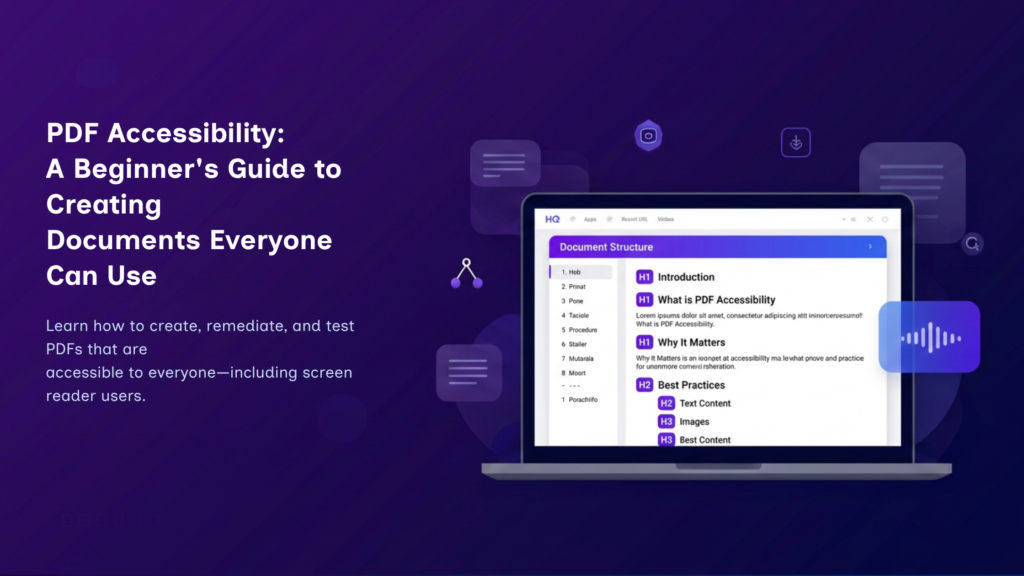
PDF Accessibility: A Beginner’s Guide to Accessible PDFs
August 9, 2026
By Manikanta
If you’ve ever downloaded a document from a website, filled out an application form, or read an eBook, chances are you’ve used a Portable Document Format (PDF)—one of the world’s most widely used file formats. PDFs preserve a document’s layout, fonts, images, and formatting, ensuring that it appears consistently across different devices and platforms.
However, while a PDF may look perfect on screen, that doesn’t necessarily mean it is accessible or usable for everyone.
This is where PDF accessibility comes in.
What is PDF Accessibility?
PDF accessibility is the process of making PDFs usable by everyone, including people who rely on assistive technologies such as screen readers, keyboard navigation, Braille displays, and speech recognition software.
The foundation of an accessible PDF is its semantic structure. By using proper tags for headings, paragraphs, lists, tables, images, and forms, assistive technologies can accurately interpret and navigate the document, ensuring the content is accessible to all users.
To support accessibility, PDF documents are commonly designed to conform to PDF/UA (PDF/Universal Accessibility), the international standard for accessible PDF documents. PDF/UA defines the technical requirements for creating PDFs that are accessible and interoperable with assistive technologies.
Why Does PDF Accessibility Matter?
Imagine receiving a restaurant menu where every dish is mixed up randomly, the prices are missing, and the section titles don’t exist.
That’s similar to what an inaccessible PDF feels like for someone using a screen reader.
Poorly designed PDFs can prevent users from:
- Applying for jobs.
- Reading government notices.
- Accessing educational material.
- Completing banking or healthcare forms.
- Understanding business reports.
PDF accessibility removes these barriers by ensuring that information is accessible, understandable, and usable for everyone, regardless of their abilities or the assistive technologies they use.
How to Test and Remediate an Accessible PDF
Creating an accessible PDF begins with an accessible source document. Whether you’re using Microsoft Word, PowerPoint, Google Docs, or Adobe InDesign, incorporating accessibility best practices from the start significantly reduces the need for remediation later.
When preparing your document, remember to:
- Use a logical heading hierarchy.
- Export the document as a tagged PDF.
- Do not create PDFs using Print to PDF. Instead, use Save As PDF or Export to PDF, as printing to PDF removes accessibility tags and document structure, resulting in an inaccessible PDF.
- Add meaningful alternative text to informative images.
- Ensure the document has a correct reading order.
- Use proper table headers and ensure all form fields are clearly labeled.
- Ensure interactive elements such as links, buttons, and form controls are keyboard accessible and have meaningful accessible names.
- For fillable PDF forms, ensure all form fields are properly labeled, required fields are identified programmatically, and appropriate instructions and error messages are associated with the relevant fields.
- Write descriptive hyperlink text instead of generic phrases like “Click Here.”
- Set the document title and define the primary language for the entire document. If portions of the document are written in a different language, specify the correct language for those sections so screen readers can pronounce the content accurately.
- Maintain sufficient color contrast between text and background to improve readability.
Before publishing or sharing your document, review the PDF for accessibility. This review and correction process is known as PDF remediation, ensuring that the document meets accessibility standards and can be used effectively with assistive technologies.
Adobe Acrobat Pro is the industry-standard tool for PDF remediation, offering features such as the Accessibility Checker, Prepare for Accessibility, Tags Panel, and Reading Order tool to identify and resolve accessibility issues.
Once remediation is complete, validate the document using automated accessibility testing tools such as PAC (PDF Accessibility Checker) and other trusted PDF accessibility validators. Since automated tools cannot detect every issue, complete a final manual review using keyboard navigation and a screen reader such as NVDA or JAWS. Combining automated validation with manual testing helps ensure your PDF is both standards-compliant and accessible to everyone.
Want to learn more?
Explore these official resources to deepen your understanding of PDF accessibility, standards, and testing best practices.
Resource | Description |
Adobe Acrobat Accessibility Documentation | Official Adobe documentation on creating, remediating, and verifying accessible PDF documents using Adobe Acrobat Pro. |
Adobe Acrobat Accessibility Learning Series | A free learning series covering PDF accessibility fundamentals, including tagging, reading order, tables, forms, and remediation techniques. |
W3C Web Accessibility Initiative (WAI) | The official source for Web Content Accessibility Guidelines (WCAG), accessibility principles, and guidance applicable to PDF documents and other digital content. |
PDF Association – Accessibility Resources | Industry guidance on PDF/UA, tagged PDFs, accessibility best practices, standards, and technical resources. |
PAC (PDF Accessibility Checker) Resources | Official PAC documentation, quick start guides, FAQs, validation guidance, and resources for evaluating PDF accessibility and PDF/UA compliance. |
Final Thoughts
Accessibility isn’t about creating a separate experience for people with disabilities—it’s about creating one experience that works for everyone.
Every accessible PDF you publish makes information easier to find, easier to understand, and easier to use.
If you’re beginning your accessibility journey, don’t worry about mastering everything at once. Learn the fundamentals, practice consistently, and improve with each document you create.
Remember
An accessible PDF isn’t just a better PDF—it’s a document that everyone can use.
What was the first PDF accessibility issue you discovered? Share your experience in the comments—I’d love to hear your thoughts!